🚀 Follow Me on X – New Account
My previous X account @AngrySysOps was suspended.
I am continuing the same tech, cybersecurity, and engineering discussions under a new handle.
Follow @TheTechWorldPod on X for daily insights, threads, and podcast updates.
So, you’ve decided to upgrade your vCenter Server Appliance. You’ve sacrificed your coffee to the IT gods, scheduled your downtime, and clicked the magical “Pre-upgrade check” button.
You’re expecting a green checkmark. Instead, vCenter spits this nonsense in your face:
“The log partition size on this vCenter Server is smaller than the recommended 50 GB. Resolution: Please update log partition to 50 GB after successful patch.”
Wait, what? When did 25GB stop being enough for text files? Apparently, newer versions of vCenter are so incredibly chatty that VMware (sorry, Broadcom) decided the new baseline for /storage/log is 50GB. The warning tells you to fix it after the patch, but if you’re like me, you don’t like leaving unresolved yellow warnings on your dashboard before pulling the trigger on an upgrade.
So, you decide to fix it right now. And that’s when the trap springs.
Gotcha #1: You Were Responsible, So VMware Punished You
You do what any good admin does: you open the vSphere Client, right-click your vCenter VM, and hit Edit Settings to expand the disk.
But the text box is greyed out. You can’t change it.
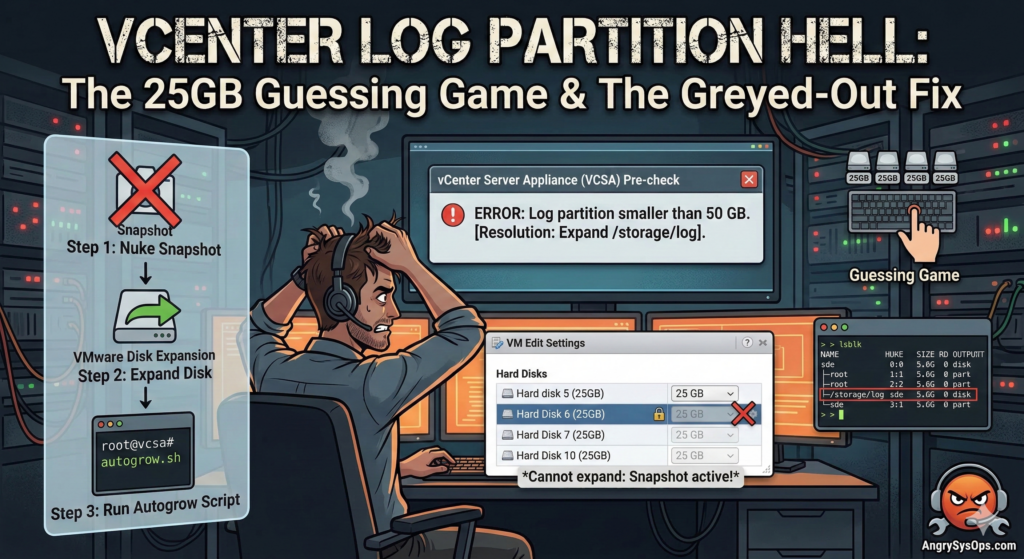
Is vCenter broken? Did your permissions magically vanish? Nope. It’s because you took a VM snapshot before starting the upgrade. Because you followed best practices and protected your environment with a rollback plan, vSphere locked the base disks. You literally cannot expand a VMDK while a snapshot exists. You have to delete the snapshot, expand the disk, and then re-take the snapshot.
Gotcha #2: The VMDK Guessing Game
Okay, fine. You delete the snapshot. You go back into Edit Settings. The boxes are editable!
You look for the 25GB drive. And you see this:
- Hard disk 5: 25 GB
- Hard disk 6: 25 GB
- Hard disk 7: 25 GB
- Hard disk 10: 25 GB
Which one is /storage/log? If you guess wrong, you just gave your autodeploy or db partition a completely useless 25GB of expensive SAN storage.
To figure out which disk isn’t a lie, you have to ssh into the VCSA appliance and play the alphabet game.
Run this command:
lsblkLook for /storage/log in the right-hand column, and trace it up to the parent disk (e.g., sda, sdb, sdc).
VMware maps Linux device letters alphabetically to the Hard Disk numbers in the GUI:
sda= Hard Disk 1sdb= Hard Disk 2sdc= Hard Disk 3sdd= Hard Disk 4sde= Hard Disk 5 (Usually the winner for logs!)
🚀 Follow Me on X – New Account
My previous X account @AngrySysOps was suspended.
I am continuing the same tech, cybersecurity, and engineering discussions under a new handle.
Follow @TheTechWorldPod on X for daily insights, threads, and podcast updates.
The Actual Fix (No BS Steps)
Once you’ve confirmed that sde is indeed the home of your logs, here is how you actually get this stupid warning to go away so you can go home.
1. Nuke your snapshot Go to your vCenter VM > Snapshots > Manage Snapshots. Delete it. Wait for the task to finish.
2. Expand the correct disk Edit Settings on the VM. Find your target disk (e.g., Hard Disk 5) and change it from 25 GB to 50 GB. Click OK.
3. Tell Linux about the new space Jump into your VCSA SSH session as root and run VMware’s magical auto-grow script:
/usr/lib/applmgmt/support/scripts/autogrow.sh4. Verify it actually worked
df -h /storage/logIf it says 50G, congratulations. You won.
5. Take your snapshot again Yes, again. Now that the disks are expanded, take your pre-upgrade snapshot.
Now you can finally hit that “Upgrade” button and watch the progress bar sit at 80% for an hour while you question your career choices.
Happy patching, nerds.
🚀 Follow Me on X – New Account
My previous X account @AngrySysOps was suspended.
I am continuing the same tech, cybersecurity, and engineering discussions under a new handle.
Follow @TheTechWorldPod on X for daily insights, threads, and podcast updates.