🚀 Follow Me on X – New Account
My previous X account @AngrySysOps was suspended.
I am continuing the same tech, cybersecurity, and engineering discussions under a new handle.
Follow @TheTechWorldPod on X for daily insights, threads, and podcast updates.
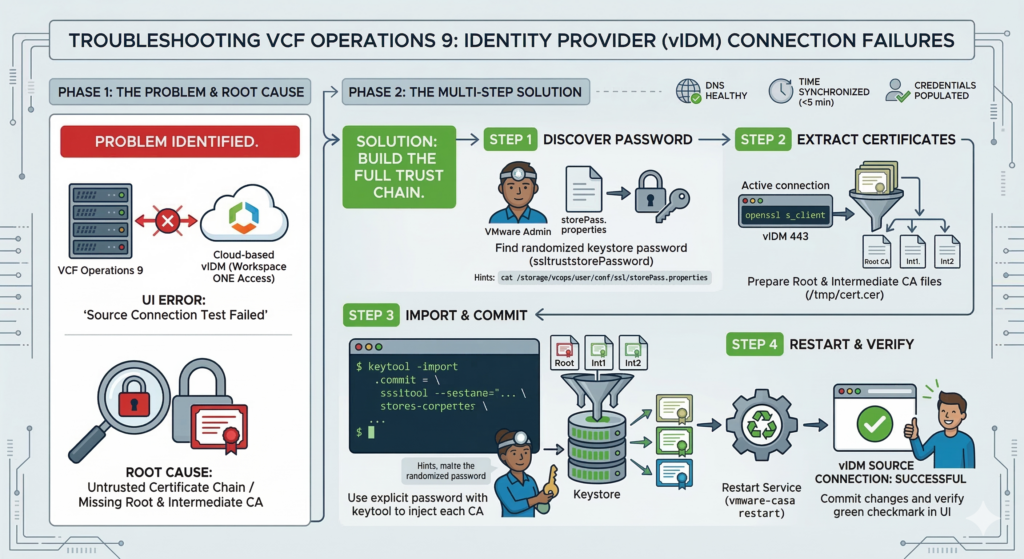
The Issue: “Source Connection Test Failed”
After a fresh deployment or a network reconfiguration (IP/Gateway change) of VCF Operations 9, attempts to connect to the Identity Provider (vIDM/Workspace ONE Access) fail during the “Test Connection” phase.
Symptoms
- DNS is healthy: The appliance can resolve the vIDM FQDN (e.g.,
idm-angrysysops.com). - Connectivity is up:
pingandopenssl s_clientshow a successful connection on Port 443. - Error Message: A generic “Connection Failed” in the UI, or a
Verification error: num=19: self-signed certificate in certificate chainin the CLI.
Root Cause: Missing Root/Intermediate Trust
VCF Operations 9 relies on a Java-based truststore. If the vIDM server uses a custom internal Certificate Authority (CA), and that CA is not present in the appliance’s local truststore, the SSL handshake is rejected immediately. Because VCF 9 uses a randomized password for its keystores, standard changeit commands fail.
The Solution: Manual Certificate Injection
Phase 1: Preparation
- Identify the Certificate Chain: Use OpenSSL to see which certificates the vIDM server is presenting:
openssl s_client -connect <vIDM_FQDN>:443 -showcerts- Extract the Root/Intermediate CA: Copy the text from
-----BEGIN CERTIFICATE-----to-----END CERTIFICATE-----and save it to a temporary file on the VCF Ops appliance (e.g.,/tmp/ca_root.cer).
Phase 2: Bypassing Keystore Security
In VCF 9, the truststore password is randomized. You must locate it before importing the certificate.
- Retrieve the Truststore Password:
cat /storage/vcops/user/conf/ssl/storePass.propertiesNote the value of ssltruststorePassword.
🚀 Follow Me on X – New Account
My previous X account @AngrySysOps was suspended.
I am continuing the same tech, cybersecurity, and engineering discussions under a new handle.
Follow @TheTechWorldPod on X for daily insights, threads, and podcast updates.
Phase 3: Importing the Certificate
Run the keytool command using the discovered password and the standard VCF 9 truststore path:
/usr/bin/keytool -import \
-alias cert-root \
-file /tmp/ca_root.cer \
-keystore /storage/vcops/user/conf/ssl/tcserver.truststore \
-storepass <YOUR_DISCOVERED_PASSWORD> \
-noprompt
Phase 4: Committing the Changes
The Java process must be restarted to reload the updated truststore:
service vmware-casa restartFinal Configuration Checklist
Once the certificate is trusted, ensure the following fields are populated in the VCF Operations UI:
| Field | Requirement |
| Username/Password | Must be the admin user of the vIDM system-domain. |
| Redirect FQDN | Match the appliance’s DNS name (Avoid using IP if possible). |
| Time Sync | Verify the appliance clock is within 5 minutes of the vIDM server. |
If the connection still fails after trusting the Root CA, repeat Phase 3 for the Intermediate CAs found in the certificate chain. Modern enterprise security often requires the full chain to be present in the local keystore.
🚀 Follow Me on X – New Account
My previous X account @AngrySysOps was suspended.
I am continuing the same tech, cybersecurity, and engineering discussions under a new handle.
Follow @TheTechWorldPod on X for daily insights, threads, and podcast updates.