We’ve all been there. You’re in the middle of a glorious storage refresh. The storage team has finally racked the new PowerMax arrays, the zoning is done, and you’re happily Storage vMotioning VMs from the old VMAX to the new hotness.
Life is good. The progress bars are green.
And then you hit the Content Library.
specifically, a Subscribed Content Library. You right-click it, expecting a nice “Migrate” button or an “Edit Settings” menu that lets you swap the datastore. But no. vCenter looks at you with a blank stare. The storage backing field is grayed out, or worse, you change it and it tries to copy data and fails obscurely.
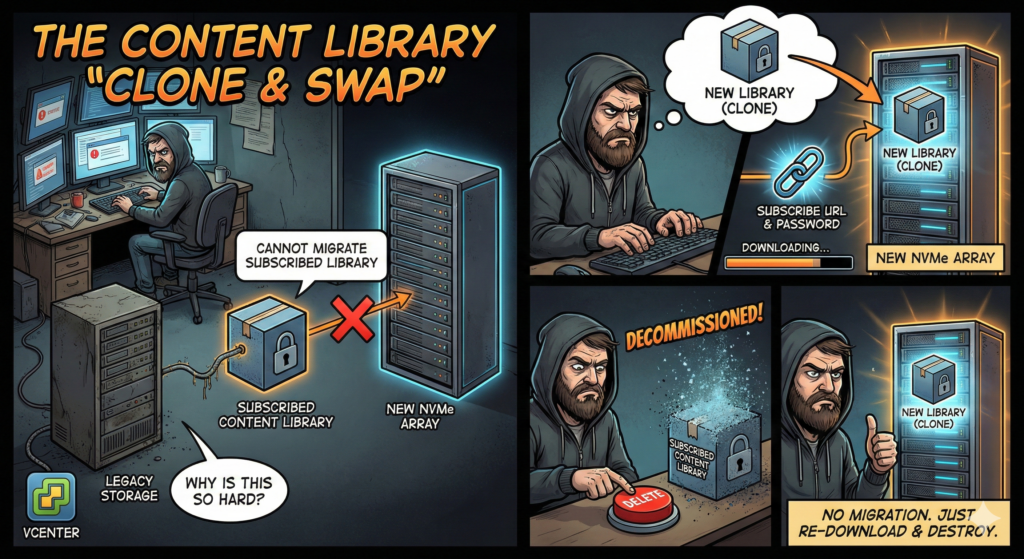
If you are trying to move a 350GB+ Subscribed Library (like my C4-PROD-Templates) from an old VMAX LUN to a new PowerMax datastore, you can’t just “move” it. You have to clone it.
Here is the no-nonsense guide to moving a Subscribed Content Library without losing your mind (or the password).
🚀 Follow Me on X – New Account
My previous X account @AngrySysOps was suspended.
I am continuing the same tech, cybersecurity, and engineering discussions under a new handle.
Follow @TheTechWorldPod on X for daily insights, threads, and podcast updates.
The Problem
You have a Content Library that subscribes to a publisher URL. It lives on Old_Slow_Datastore. You want it on New_Fast_Datastore.
Because it is Subscribed, vCenter treats it as read-only content synced from a master source. It doesn’t like you messing with its underlying storage plumbing directly.
The Solution: The “Clone and Swap”
We aren’t going to migrate. We are going to build a replacement and then take the old one out back.
Step 1: Gather Your Intel
Before you delete anything, you need the keys to the castle. Open your existing library and copy these exact details:
- Subscription URL: (e.g.,
https://your-vcenter.../lib.json) - The Password: If your library says
Password protection: Yes, you generally cannot retrieve this from vCenter. Go find the publisher admin or check your password vault. Do not proceed without this. - Current Size: (e.g., 358 GB). You need to make sure your new datastore isn’t going to choke on the download.
Step 2: Create the “New” Library
Don’t touch the old library yet. We want zero downtime for deployments.
- Go to Content Libraries -> Create.
- Name: give it a temporary name like
PROD-Templates-NEW. - Subscription: Paste that URL you copied in Step 1.
- Authentication: Check the box. Type the password.
- Download: Set to Immediately (unless you enjoy waiting for content to stream when you actually need it).
- Storage: This is the money shot. Select your new PowerMax Datastore (e.g.,
prod-pmax2648-0040).
Step 3: The Waiting Game (Coffee Time)
Your vCenter is now pulling 358 GB of data across the wire.
- Don’t delete the old library yet.
- Do monitor the “Synchronize content library” task.
- Do verify that the Item count in the new library matches the old one (e.g., 14 items).
Step 4: The Old Yeller Treatment
Once the new library is fully synced and showing green:
- Verify: Check the file system on the new datastore to make sure the
.vmdkand.ovffiles are actually there. - Delete: Right-click the OLD library (the one on the VMAX datastore) and delete it.
- Note: This wipes the data from the old storage array. Good riddance.
Step 5: The Rename
Now that the old one is gone, you can fix the naming convention.
- Right-click
PROD-Templates-NEW. - Rename it to the original name (e.g.,
PROD-Templates). - Done.
Summary
You can’t vMotion a subscription. You have to re-subscribe. It’s a waste of bandwidth and a test of patience, but it’s the only way to get off that legacy storage cleanly.
Now, go tell the Storage Team they can finally reclaim that LUN.
🚀 Follow Me on X – New Account
My previous X account @AngrySysOps was suspended.
I am continuing the same tech, cybersecurity, and engineering discussions under a new handle.
Follow @TheTechWorldPod on X for daily insights, threads, and podcast updates.
@angrysysops.com