Before you read :

The LDAP certificate has expired, so I wanted to renew it. I received a new certificate from my DA team, and once I tried to upload the new certificate, I encountered this error: “Cannot configure identity source due to Failed to probe provider connectivity [URI: ldaps://… ]; Caused by: Can’t contact LDAP server.”
This message appears most commonly right after the LDAPS certificate expires and you attempt to replace it.
Admins often spend hours troubleshooting DNS, firewalls, routing, and port 636 connectivity, only to discover that everything actually works.
Good news:
The problem isn’t your network.
The problem is vCenter itself.
This article breaks down why this error happens, what VMware/Broadcom officially say about it, and how to fix it cleanly.
Symptoms
You are configuring or updating an identity source in:
vCenter → Administration → Single Sign-On → Configuration → Identity Sources
You select:
- Identity Source Type: Active Directory over LDAP
- Connect to: Specific domain controllers
- Primary server URL:
ldaps://your-ldaps-server:636 - You provide the bind account and upload the new certificate.
When you click Test Connection, vCenter throws:
Cannot configure identity source due to Failed to probe provider connectivity
[URI: ldaps://ldaps.internal.example.com];
tenantName [vsphere.local],
userName [DOMAIN\svcaccount]
Caused by: Can't contact LDAP server.
Even more confusing:
When you test LDAPS from the vCenter appliance itself:
openssl s_client -connect ldaps.internal.example.com:636 -showcerts
Everything looks perfect, the handshake completes, the certificate chain verifies, and the server responds normally.
So why does vCenter insist the server “can’t be contacted”?
🔥 Side Quest for SysAdmins 🔥
I’m building HackMeNow – a terminal-style hacking puzzle game.
Back it on Kickstarter and help bring it to life:
The Hidden Cause: vCenter Cannot Replace an LDAPS Certificate in an Existing Identity Source
While the error message suggests a network or LDAP availability issue, the real cause is something VMware documented years ago:
**vCenter Single Sign-On cannot update or replace the SSL certificate of an existing LDAPS identity source.
You must remove the identity source entirely and re-add it.**
This behavior is documented in Broadcom/VMware KBs, including:
- KB 401134 – “Editing existing LDAPS identity source fails with ‘Can’t contact LDAP server’”
- KB 316596 – “Secure LDAP identity source must be removed and re-added when updating SSL certificate”
- Additional related KBs under ID numbers 394249, 398387, 402946
The key line from VMware:
“If updating or replacing the SSL certificate, the identity source must be removed and re-added.”
In other words:
vCenter’s SSO component maintains an internal trust state for LDAPS identity providers.
When the external LDAP server’s certificate changes, SSO cannot reconcile the new trust anchor during an edit operation.
Instead of returning a meaningful TLS error, it returns the generic and misleading:
Can’t contact LDAP server
Why does this happen?
Three internal mechanisms combine to create the issue:
1. vCenter caches LDAPS trust information
The identity source is stored with its certificate state. When the certificate changes, SSO cannot update this entry cleanly.
2. Editing an identity source triggers a re-bind using the old trust context
This causes the TLS handshake to fail, but vCenter doesn’t show a TLS error; it simply reports “can’t contact server.”
3. The identity source editor does not rebuild or flush the trust chain
This only occurs during creation, not editing.
The Correct Fix (Broadcom/VMware Official Method)
Step 1 — Log in using a local SSO account
Use:
administrator@vsphere.local
or whichever local SSO admin account exists.
Do not log in using AD credentials — they might stop working once the identity source is removed.
Step 2 — Remove the existing LDAPS identity source
Go to:
Administration → SSO → Configuration → Identity Sources → Select Source → Delete
This will not remove:
- AD users already assigned permissions
- AD groups mapped to roles
(vCenter stores them by UUID, not name)
Users will continue to function once the identity source is re-added.
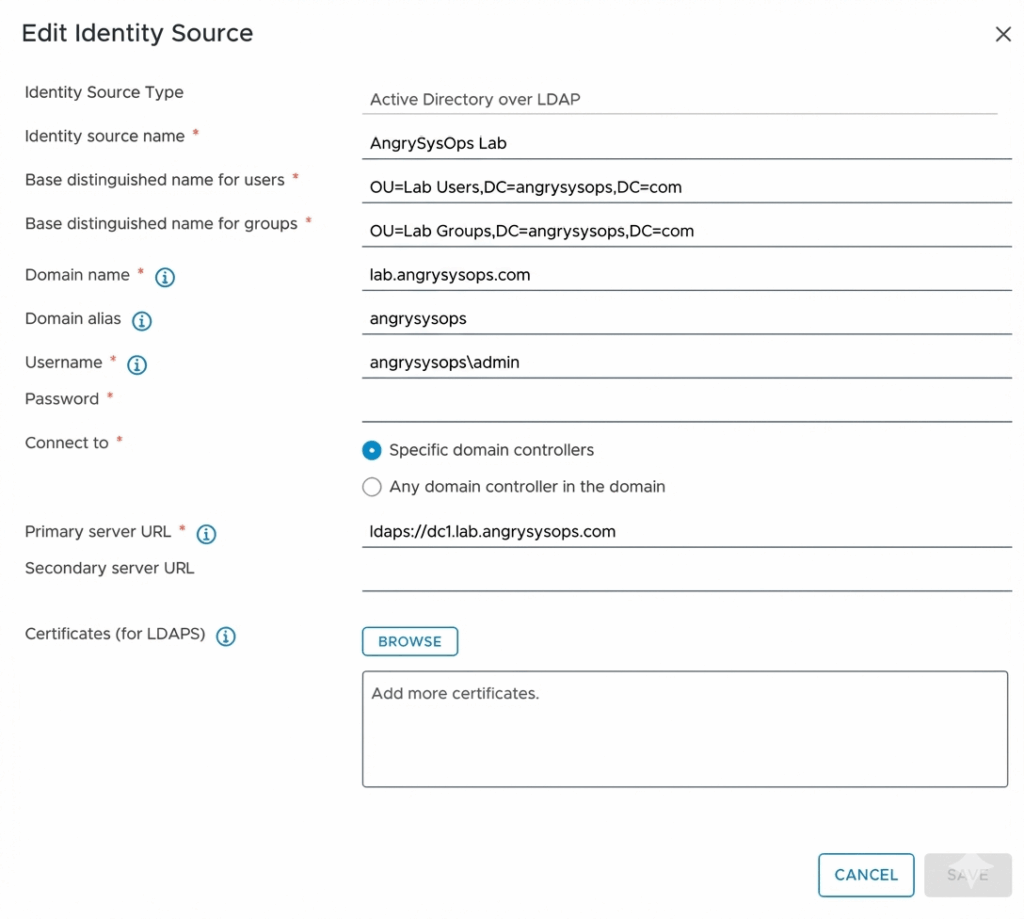
Step 3 — Re-add the identity source with the new certificate
Choose:
- Active Directory over LDAP
- Provide your domain name
- Use Specific domain controllers
- Enter the same LDAPS URL
- Upload the new LDAPS certificate
- Enter the bind account
Click Save.
Step 4 — Verify authentication
Test by logging in as an AD user.
Everything should now work normally.
Important Notes
“Will deleting the identity source break permissions?”
No.
vCenter keeps internal identifiers for users and groups.
After re-adding the identity source, they continue working.
“Do I need to reboot vCenter?”
No reboot required.
“Does this affect Integrated Windows Authentication (IWA)?”
No — IWA is deprecated and uses different flows.
This issue affects LDAP over SSL (LDAPS) identity sources only.
Can VMware Fix This?
VMware/Broadcom have acknowledged this behavior for years, but as of vSphere 8.0 U3 and VCF 5.x:
❌ You still cannot update LDAPS certificates in place
✔ You must remove and re-add the identity source
Unless they redesign how SSO stores trust anchors, this limitation will likely remain.
Summary
If LDAPS authentication suddenly breaks after replacing the domain controller certificate — and vCenter insists the server “can’t be contacted” despite perfect connectivity:
You are not dealing with a firewall or network issue.
You are dealing with an SSO design limitation.
Fix: Remove the LDAPS identity source → Re-add it with the new certificate.
This is the only supported and reliable solution.
Subscribe to the channel: youtube.be/@AngryAdmin 🔥
🚨Dive into my blog: angrysysops.com
🚨Snapshots 101: a.co/d/fJVHo5v
🌐Connect with us:
- 👊Facebook: facebook.com/AngrySysOps
- 👊X: x.com/TheTechWorldPod
- 👊My Podcast: https://open.spotify.com/show/1qISFIuJXiYDF3WK6phlCb
- 👊Mastodon: techhub.social/@AngryAdmin
💻Website: angrysysops.com
🔥vExpert info: vExpert Portal