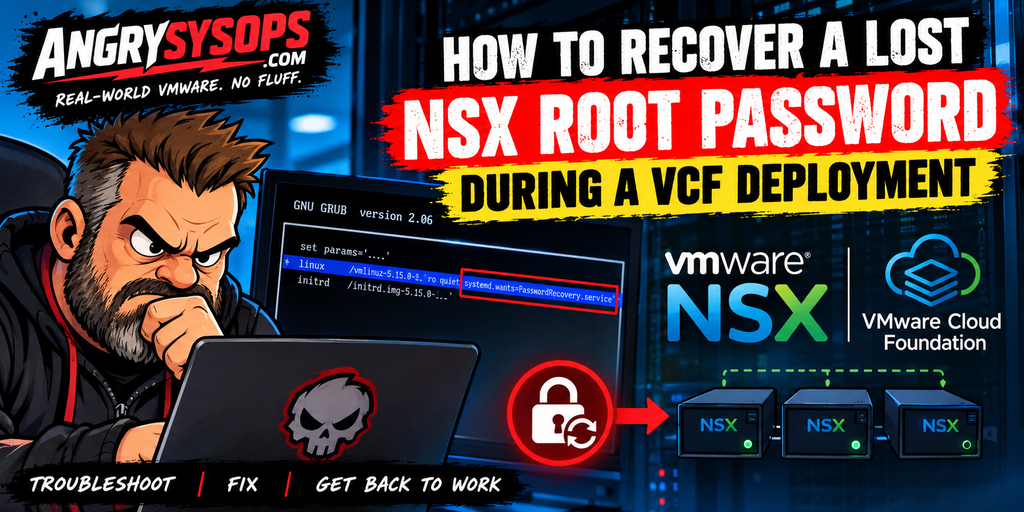
When expired NSX credentials bring your VCF workflow to a halt, and the root password you thought you knew doesn’t work.
Another Day, Another VMware Surprise
I was working on a VMware Cloud Foundation (VCF) workload domain when I encountered an error that stopped the workflow.
Great. Just what every infrastructure engineer wants to see.
Rather than blindly retrying the operation, I started digging through the logs to understand what had gone wrong.
After some investigation, the problem became clear: the NSX Manager account passwords had expired.
At first, this didn’t seem particularly complicated. I just needed to log in to NSX Manager, reset the expired credentials, and get back to work.
Except there was one small problem.
The root password I thought was correct wasn’t working.
I tried the credentials I believed were valid, but NSX Manager wasn’t having any of it.
Without working root credentials, I couldn’t simply reset the passwords from the appliance operating system.
Fortunately, VMware NSX has a documented recovery mechanism that allows you to reset the root password through GRUB.
Here’s how I approached it.
Understanding the Problem
NSX Manager uses several local accounts, including:
- root – Used for appliance operating-system administration.
- admin – Used for NSX administration through the CLI and management interface.
- audit – Used for auditing and related access.
These accounts have separate credentials and password-expiration policies.
In a VMware Cloud Foundation environment, password expiration can be particularly troublesome because VCF management workflows depend on valid credentials to communicate with infrastructure components.
When those passwords expire, operations can fail, and NSX Manager accounts may appear as disconnected in VCF password management.
Broadcom documents this behaviour in KB 426253 – NSX Manager Password Expiration Causing SDDC Manager Disconnections.
You can also check root password expiration directly from the NSX Manager CLI when the admin account is accessible:
get user root password-expirationAn expired password may produce output similar to:
Password expires 90 days after last change,
Current password is expired.
This is an example from Broadcom’s documentation, rather than the exact output from my incident.
In my case, the logs had already pointed me towards expired NSX credentials, but I had an additional challenge: I couldn’t authenticate with the root password I had available.
Time for Plan B.
Recovering the NSX Manager Root Password Using GRUB
Broadcom documents a supported procedure for this situation in:
KB 416526 – Reset NSX Appliance Root Password via GRUB
The procedure uses a dedicated systemd password-recovery service during the appliance boot process.
It doesn’t require the existing appliance root password.
However, you must have access to the NSX Manager virtual machine console and know the GRUB credentials.
Before You Begin
If your NSX deployment consists of a three-node Manager cluster, take a few precautions:
- Confirm the remaining NSX Managers are healthy and the cluster is stable.
- Make sure no upgrade, installation, or lifecycle-management operation is actively modifying the appliance.
- Verify you have access to the VM console through vCenter.
- Plan to recover one NSX Manager at a time.
The good news is that Broadcom states the recovered root password should synchronize across a healthy three-node NSX Manager cluster. You normally need to perform the recovery on only one Manager.
Step 1: Open the NSX Manager Console
Log in to the vSphere Client and locate the affected NSX Manager virtual machine.
Open its VM Console.
You need direct console access because the procedure involves modifying the GRUB boot parameters.
An SSH session won’t help here.
Step 2: Reboot the NSX Manager
Reboot the appliance.
During startup, press Shift or Esc to interrupt the boot sequence and display the GRUB menu.
Timing matters.
If the operating system starts booting normally, you’ll need to reboot and try again.
Step 3: Access the GRUB Boot Configuration
Once the GRUB menu appears, select the normal Ubuntu boot entry and press:
eGRUB will request authentication before allowing you to edit the configuration.
Here’s the important part.
The GRUB root account is not the same as the NSX appliance root account.
They use separate credentials.
According to Broadcom’s documentation, the default GRUB credentials, if they haven’t been changed, are:
Username: root
Password: NSX@VM!WaR10
These are documented default credentials, not a universal password for every NSX installation.
If authentication fails, double-check the keyboard layout used by the VM console, particularly the special characters in the password.
Broadcom specifically mentions keyboard layout as a common cause of authentication failures at this stage.
Step 4: Modify the Linux Boot Parameters
After authenticating, edit the selected GRUB boot entry.
Locate the line beginning with:
linuxMove to the end of that line and append the following parameter, separated from the existing parameters by a space:
systemd.wants=PasswordRecovery.serviceBe careful not to remove or modify any of the existing boot parameters.
This additional parameter instructs systemd to start NSX’s password-recovery service during boot.
Step 5: Boot Into Password Recovery
Once the parameter has been added, press:
Ctrl + XThe appliance will continue booting with the modified parameters.
Watch the console.
After the boot messages settle, the password-recovery process will prompt you to enter a new root password.
Enter your new password and confirm it when requested.
Make sure it satisfies the appliance’s password-complexity requirements.
Once the password has been accepted, the normal boot process continues.
Step 6: Verify Root Access
Once NSX Manager has completed its boot sequence, verify that the new root password works.
You can test authentication from the VM console or through SSH if root SSH access is enabled.
If authentication succeeds, the root password recovery has worked.
But we’re not finished yet.
What About the Other NSX Managers?
If you’re running a three-node NSX Manager cluster, you generally don’t need to repeat the GRUB recovery on every node.
According to Broadcom KB 416526, the new root password should synchronize with the other two NSX Managers.
Allow approximately 5–10 minutes for synchronization, then verify authentication on the other nodes.
If the password hasn’t synchronized after that period, investigate the cluster and refer to:
KB 317192 – NSX Credentials Synchronization Troubleshooting
Don’t start resetting passwords independently across the cluster without first checking its health and synchronization status.
Also remember that the GRUB password itself does not synchronize between Manager nodes.
Don’t Forget VMware Cloud Foundation
Recovering root access resolves only part of the issue.
In a VCF environment, you also need to make sure the management platform knows the correct password.
Otherwise, you can end up in an annoying situation where you can log in directly to NSX Manager, but VCF continues reporting authentication failures because its stored credentials don’t match the appliance.
For VCF Environments Using SDDC Manager
Navigate to:
SDDC Manager → Password Management
Depending on the VCF release, this may be under Security or Administration.
Locate the affected NSX Manager account.
Because the root password was changed outside SDDC Manager, verify that the stored credential matches the new password.
Use the supported Update or Remediate workflow as appropriate for your version and the account’s status.
Broadcom KB 439290 specifically recommends the Update option when ordinary remediation fails because SDDC Manager’s stored root password differs from the appliance password.
Check that the account is no longer displayed as disconnected.
For VCF 9.x Environments
VCF 9.x introduces password management through VCF Operations Fleet Management.
Navigate to:
VCF Operations → Manage → Fleet Management → Passwords
Select the appropriate VCF instance or management domain and locate the NSX Manager account.
Follow the supported credential update or synchronization procedure for your environment. If Fleet Management’s stored password differs from the recovered appliance credential, resolve that mismatch before attempting further rotations.
See Broadcom KB 441964 – Updating NSX Manager Passwords in VCF Operations 9.1.
Check Admin and Audit Accounts Too
One final point that’s easy to overlook:
Resetting root doesn’t automatically fix expired admin or audit passwords.
If either account has also expired, those credentials need to be addressed separately.
Once the accounts are accessible, you can inspect password aging from the appliance shell:
chage -l root
chage -l admin
chage -l audit
After correcting the relevant accounts and synchronizing the credentials with VCF, review the password-expiration alarms and rerun the failed workflow’s prechecks.
What If You Don’t Know the GRUB Password Either?
This is where things become a little more complicated.
If your organization changed the default GRUB password and nobody knows the replacement, the recovery procedure above cannot proceed on that appliance.
Broadcom has documented a separate recovery approach involving replacement of an NSX Manager node.
See:
KB 421784 – Resetting the Root Password for NSX Manager Without GRUB
That procedure involves cluster membership changes and deployment of a replacement NSX Manager.
I wouldn’t recommend improvising with node detachment or redeployment in the middle of an interrupted VCF operation.
At that point, involve Broadcom Support and agree on a recovery plan before touching the cluster.
Lessons Learned
This was a useful reminder that sometimes a VCF workflow failure isn’t caused by anything particularly exotic.
No complex NSX networking issue. No mysterious infrastructure incompatibility.
Just expired credentials and, in my case, a root password that wasn’t what I thought it was.
A few takeaways:
- Monitor password expiration. Don’t discover expired infrastructure accounts during an important operation.
- Keep credentials synchronized. Changing an appliance password outside VCF can leave its credential store out of sync.
- Understand the difference between GRUB and appliance credentials. They’re separate authentication mechanisms.
- Check cluster health before recovery. Avoid introducing a second problem while fixing the first.
- Verify all affected accounts. Recovering root access doesn’t necessarily resolve expired admin or audit credentials.
Final Thoughts
The GRUB password-recovery mechanism is a useful option when you lose access to an NSX Manager root account.
The key boot parameter is:
systemd.wants=PasswordRecovery.serviceUsing this supported recovery service is much better than trying undocumented shortcuts or immediately considering an appliance replacement.
And, as usual, the biggest lesson?
Before blaming VMware Cloud Foundation for another failed workflow, check the credentials.
Sometimes the problem is considerably simpler than the error makes it look.
Until next time, happy troubleshooting!
Angry Admin
References
- Broadcom KB 416526 – Reset NSX Appliance Root Password via GRUB
- Broadcom KB 421784 – Root Password Recovery Without GRUB
- Broadcom KB 426253 – NSX Password Expiration and SDDC Manager Disconnections
- Broadcom KB 439290 – NSX Root Password Disconnected in SDDC Manager
- Broadcom KB 441964 – Updating NSX Manager Passwords in VCF Operations 9.1